Crush file sizes. Keep the quality. Win the click. Oversized images slow your site, wreck Core Web Vitals, and kneecap conversions. The fix is simple: compress smarter.
Below are our top three free image compression tools—with fast picks, clear use‑cases, and step‑by‑step mini‑guides so you can ship faster.
TL;DR — Image Compression Tool Quick Picks
Squoosh.app — Best all‑around for control & quality. One image at a time, privacy‑friendly (in‑browser), tons of codecs. For bulk, use the CLI. – https://squoosh.app/
TinyPNG — Best for WordPress workflows. Drag‑and‑drop web tool; official plugin automates compression (500 free optimizations/month via API). Now supports AVIF, WebP, JPEG, and PNG. – https://tinypng.com/
Optimizilla — Best for quick batches in-browser. Upload up to 20 images at once, tweak quality with a slider, preview before you download. – https://imagecompressor.com
What to Look For in an Image Compression Tool (30‑second checklist)
Batch support when you’re processing a lot of images
Modern formats (WebP/AVIF) for smaller sizes at similar quality
Visual preview so you don’t nuke detail by accident
Workflow fit (plugins/APIs for WordPress & teams)
Privacy (client‑side vs. server‑side processing)
1. Squoosh.app
(Best All‑Around Quality Control)
Squoosh is a Google‑backed, browser‑based image optimizer with side‑by‑side previews and pro‑level codec control (MozJPEG, WebP, AVIF, etc.). It runs locally in your browser, so images don’t leave your device—great for privacy‑sensitive work.
Best for: Designers/devs who want precise control and pristine output.
Key strengths
Pixel‑perfect preview with adjustable codecs/params
Convert to modern formats (WebP/AVIF) for major savings
Private by default (client‑side processing)
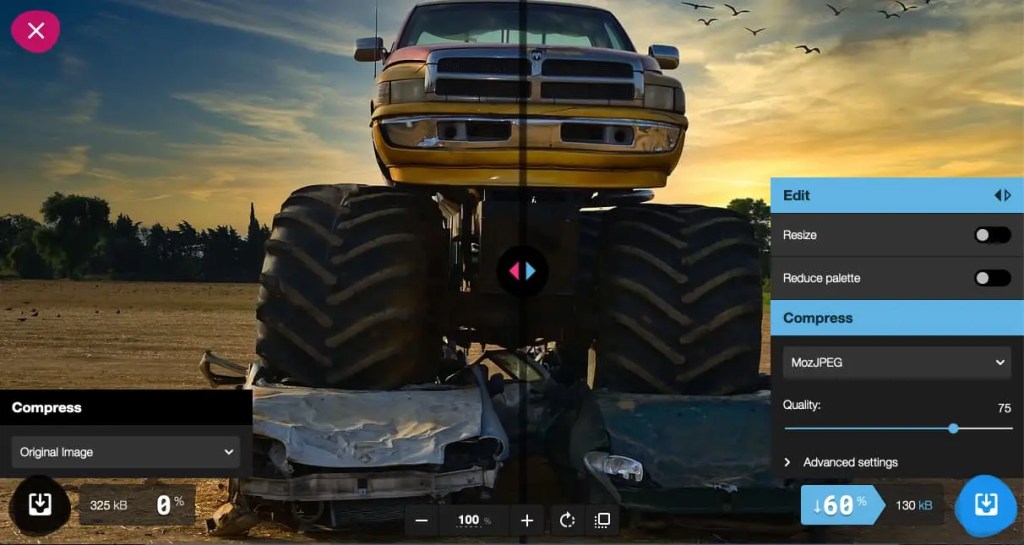
Limit to know: The web app compresses one image at a time (no native batch). For batches, use Squoosh‑CLI in your terminal.
How to use (fast)
Open Squoosh → drop your image.
Pick a codec (start with WebP).
Drag the quality slider until the preview looks clean.
Download.
Pro tip: For bulk projects, wire up squoosh‑cli to apply a preset (e.g., AVIF for hero shots, WebP for UI).
2. TinyPNG
(Best for WordPress & Set‑It‑and‑Forget‑It)
TinyPNG (and TinyJPG) offers a dead‑simple web interface and an official WordPress plugin that auto‑compresses on upload and can bulk‑optimize your library. The plugin uses TinyPNG’s API, which includes 500 free compressions/month on the starter tier. The service now supports AVIF, WebP, JPEG, and PNG.
One of the main advantages of TinyPNG is that it can compress PNG files, which are known for their large file sizes. TinyPNG can reduce the file size of PNG files by up to 70% without any significant loss in quality. This can significantly improve your website’s loading speed and user experience.
Best for: Site owners who want automatic, ongoing optimization.
Key strengths
One‑time setup with the WordPress plugin
Bulk optimize existing library; optimize on upload
Modern format support (AVIF/WebP) on the web tool

Limits to know
API/plugin free tier provides 500 monthly compressions; upgrade for more
How to use (fast)
For one‑offs: drop images on TinyPNG → download.
For WordPress: install TinyPNG – JPEG, PNG & WebP plugin → connect API key → run Bulk Optimization.
3. Optimizilla
(Best for Quick Batching in Browser)
Optimizilla lets you upload up to 20 images at once, then fine‑tune each with a simple quality slider and side‑by‑side preview before you download. It’s fast, visual, and perfect when you’ve got a folder full of assets to ship.
Best for: Agencies and power users who need quick, no‑login batching.
Key strengths
Batch 20 images per run
Quality slider + compare view for each image
Works with JPEG/PNG (and GIF per site docs)

How to use (fast)
Go to Optimizilla → drag in your images.
Click thumbnails → adjust quality slider to taste.
Download All.
Side‑by‑Side Image Compression Tool Comparison
| Tool | Batch Support | Formats | WordPress Integration | Standout |
|---|---|---|---|---|
| Squoosh.app | Web: single image; CLI supports bulk | JPEG, PNG, WebP, AVIF (codecs vary) | No (manual/CLI) | Best visual control & privacy (in‑browser). |
| TinyPNG | Web: multi‑file; Plugin/APIautomates | AVIF, WebP, JPEG, PNG | Official plugin, 500 free/month via API | Smoothest WP workflow. |
| Optimizilla | Up to 20 images at once | JPEG, PNG (site also lists GIF) | No | Fastest frictionless batching in-browser. |
Get the Most SEO Gain From Smaller Images
Prefer modern formats: Ship WebP (or AVIF for hero photos) for big savings.
Resize before compressing: Don’t upload 4000px images for a 1200px container.
Lazy‑load below‑the‑fold images; keep LCP asset lean and preloaded.
Use
srcset/sizes: Serve the right size per viewport.Name files smartly:
brand-product-angle.webp>IMG_8347.JPG.Alt text that works: Describe the content; don’t keyword‑stuff.
Common Image Compression Pitfalls (Skip These)
Compressing after upload (do it before—or automate on upload)
Forcing ultra‑low quality; artifacts kill trust
Serving PNGs where JPEG/WebP would do
Forgetting to convert format (it’s often where the biggest wins are)
Image Compression FAQ
Image compression makes your website load faster by reducing file sizes without noticeably lowering quality. Faster load times improve Core Web Vitals, lower bounce rates, and increase the chance of ranking higher on Google. Search engines prioritize user experience, and page speed is a key factor. Optimized images also save bandwidth and improve performance across both desktop and mobile.
For beginners, Squoosh.app is often the best choice. It’s a free browser-based tool built by Google that lets you drag and drop an image, adjust the quality slider, and see a real-time preview of the results. You can export to modern formats like WebP or AVIF and download instantly. It’s simple, fast, and doesn’t require an account.
Yes. Image compression can cut file sizes by 30–80%, which directly reduces how long a page takes to load. Smaller files mean fewer bytes for the browser to download, speeding up rendering and improving mobile performance. In many cases, compressing just your images can shave seconds off your load time, improving both user experience and search engine rankings.
WebP and AVIF are generally the best for web performance. They deliver smaller file sizes than JPEG or PNG while keeping excellent visual quality. JPEG is still widely used for photos, and PNG is better for images that require transparency. For most websites, switching to WebP can cut image sizes by 25–50% compared to JPEG without noticeable loss of detail.
Lossy compression shrinks file size by permanently removing some data, which may slightly reduce sharpness or color detail. Lossless compression keeps all original data intact but delivers smaller file size reductions. For web use, lossy is usually preferred because it cuts more size while maintaining acceptable quality. Most free tools let you control the balance between lossy and lossless.
The Wrap Up
If your site feels sluggish, start with your images.
Squoosh when quality control matters.
TinyPNG when you want WordPress on autopilot.
Optimizilla when you need fast batch jobs.
Want the heavy lift handled? We don’t just compress images—we engineer speed that sells. From site audits to Core Web Vitals fixes, Pure Junk Media builds momentum on purpose. Contact us – Let’s make your website unstoppable.